نصب ویندوز هشت 8 روی VMware به صورت تصویری


Since the current build of Windows 8 is still in pre-beta stage, some users are not yet ready to use Windows 8 as their primary OS.

Windows 8 Logo

So, if you don’t want to install Windows 8 on your primary machine, you can install and try it on a virtual machine software such as VMware Player, VirtualBox, and Windows Virtual PC.

Update: This guide works perfectly for Windows 8 with VMware 4.0 and above.

In this guide, we will show you how to install and run Windows 8 on VMware Player:

ادامه نوشته

فعال یا غیرفعال کردن آپشن hybernateدر ویندور سون

In Windows XP enabling Hibernate option was a very easy task, but we have to follow a different approach to do the same job in Vista and Windows 7.

If you are not aware of Hibernate feature, Hibernation is a power-saving state designed primarily for laptops. While sleep puts your work and settings in memory and draws a small amount of power, hibernation puts your open documents and programs on your hard disk and then turns off your computer. Of all the power-saving states in Windows, hibernation uses the least amount of power. On a laptop, use hibernation when you know that you won’t use your laptop for an extended period and won’t have an opportunity to charge the battery during that time.

Hibernate option in windows 7

So if you are really going to use this feature then you need to enable it by doing a simple procedure as mentioned below:

1. Open Command Prompt with Administrator rights. To open Command Prompt, typeCMD in Start menu and then hit Ctrl + Shift + Enter to open the Command Prompt with Admin rights.

2. Next, type the below command and hit enter:

powercfg /hibernate on

Hibernate command

3. Type exit and hit enter to close the Command Prompt.

4. If you can’t see the Hibernate option in Start menu then do the following tasks:

A. Type Power Options in Start menu and hit enter.

B. In the left pane, open the link labeled “Change when the computer sleeps” and then open the link “Change advanced power settings”.

Hybrid sleep

C. Under the Advanced Sleep options, expand the Sleep tree and turn off Hybrid Sleep.

D. Now go back to Start menu to see the new Hibernate entry.

منبع: intowindows.com

نصب کیک در اوبونتو

Install CakePHP on Ubuntu 10.10 and 11.10

How to : Install Mobile Media Convertor in Ubuntu 11.10

This tutorial will explain the instructions to install Mobile Media Converter in Ubuntu 11.10. Mobile Media converter is a free multi platform audio and video converter. It support formats like MP3,WMA,OGG,WAV,MPEG video , AVI, WMV, FLV, MOV,AMR and 3GP.

Screenshot at 2011 12 12 011721 300x163 How to : Install Mobile Media Convertor in Ubuntu 11.10

A good thing about this software is that  it comes with integrated Youtube downloader which is useful for video buff like me .It also supports iphone and iPod mp4 files. The program has a very easy-to-use and simple GUI (Graphical User Interface) that helps even the most amateur user. Most of the times, the only data that you must enter is the input file(s) or just drag ‘n’ drop the input file(s)! The 3GP and AMR formats are used by mobile phones for MMS, video and sound recordings, etc.
Screenshot at 2011 12 12 011822 300x100 How to : Install Mobile Media Convertor in Ubuntu 11.10

How to Install Mobile Media Convertor :

Open the terminal and run the following command to install its dependencies :

sudo apt-get install libfaac0 mencoder ffmpeg

Next install Mobile Media convertor through following command :

cd /tmp
wget -O mmc_i386.deb http://goo.gl/tvZBM
sudo dpkg -i mmc_i386.deb

Enjoy !!


منبع: tuxtree.com

How to : Change Start Up Sound in Ubuntu 11.10

This Tutorial will explain how to change  start up sound in Ubuntu . The format used in Ubuntu for startup sound is .OGG, so you have to convert music files into OGG before you set it as start up sound in Ubuntu . There are many converters available in market , so you can opt any converter.I have mobile Media converter to convert it into .OGG format.

Screenshot at 2011 12 12 013933 300x206 How to : Change Start Up Sound in Ubuntu 11.10

Next step is to copy the converted OGG and paste into Ubuntu sound folder .To do that , enter following command in terminal .

gksudo nautilus /usr/share/sounds/ubuntu/stereo

Before you copy the converted OGG , rename it into desktop-login.ogg and copy-paste into Ubuntu sound folder.

Note : Please take backup of existing desktop-login.Ogg file for future use.


منبع: tuxtree.com

حدیثی گوهر بار از امام صادق عليه السّلام در مورد خدمت به بندگان خدا

قال الامام الصادق - عليه السّلام - : إِنّي لَأسارٍِعُ إلي حاجَةِ عَدُوّي خَوفاً اَنْ اَرُدَّهُ فَيَسْتَغْنيَ عَنّي.
«بحار الانوار، ج 78، ص 207»
امام صادق - عليه السّلام – فرمود: من در برآوردن نياز دشمن خود (نيز) شتاب مي‌كنم؛ زيرا مي‌ترسم دست رد به سينه او زنم و او از من بي‌نياز شود.

حدیثی گوهربار از امام کاظم علیه السلام در مورد خدمت به مردم

 قال الامام الكاظم - عليه السّلام - : اِنّ لِلّهِ عباداً في الأرضِ يَسعَونَ في حوائجِ النّاسِ هُمُ الآمِنونَ يَومَ القِيامَةِ.

«بحار الانوار، ج 74، ص 319»

امام كاظم - عليه السّلام - فرمود:

همانا خدا را در زمين بندگاني است كه براي رفع نيازهاي مردم مي‌كوشند، اينان در روز قيامت (از عذاب)، در امان هستند.

PSD to HTML Tutorial: Code a Photoshop File to a Working Website

PSD to HTML Tutorial: Code a Photoshop File to a Working Website


Upgrade from Ubuntu 11.10 to 12.04 LTS

We recommend you backup your existing Ubuntu installation before updating.

If you have a version of Ubuntu other than Ubuntu 11.10, please read the upgrade notes for more information on how to upgrade.

Before you start the upgrade, we recommend that you read the release notes for Ubuntu 12.04, which which include workarounds for any problems you might encounter.

1

Launch the update manager

Press the Superkey (Windows key) to launch the Dash and search for Update Manager

2

Check for updates

Click the Check button to check for new updates. If there are any updates to install, use the Install Updates button to install them, press Check again after that first update is complete – then press the Upgrade button.

3

Install the upgrade

A message will appear informing you of the availability of the new release. Click Upgrade and follow the on-screen instructions.


منبع: http://www.ubuntu.com

Installing outside of a package manager

Complete instructions for installing Firefox outside of package management may be available at your distribution's support website. For example:

  • Before you install Firefox, make sure that your computer has the required libraries installed. Missing libraries will cause Firefox to be inoperable.
  • The installation file provided by Mozilla in .tar.bz2 format does not contain sources but pre-compiled binary files, therefore you can simply unpack and run them. There is no need to compile the program from source.
  • The following instructions will install Firefox into your home directory, and only the current user will be able to run it.
  1. Download Firefox from the Firefox download page to your home directory.
  2. Open a Terminal and go to your home directory: cd ~
  3. Extract the contents of the downloaded file: tar xjf firefox-*.tar.bz2
  4. Close Firefox if it's open.
  5. To start Firefox, run the firefox script in the firefox folder: ~/firefox/firefox

Firefox should now start. You can then create an icon on your desktop to run this command.

منبع: /support.mozilla.org

ساختار فایل سیستم لینوکس

هر سیستم عامل دارای نوعی فایل سیستم است .

در ویندوز اون رو به صورت Computer  و درایو های C , D و …. میبینیم .

اما در لینوکس کاملا متفاوت است. فایل سیستم اصلی لینوکس رو  /   روت یا ریشه نام داره  و درایو هاواجزای سیستم  زیر مجموعه ی اون قرار دارن.

در ادامه :‌

آشنایی با فایل سیستم لینوکس دبیان ( مادر اوبونتو )  مطابق دوره ی  LPI

فایل سیستم لینوکس رو با مشخصه ی /   روت یا ریشه می شناسیم.

سیستم فایل لینوکس دبیان ساختاریه که اطلاعات شما رو در کامپیتو.ر ذخیره می کنه و  فایل ها در یک ساختار درختی وارونه از دایرکتوری ها ذخیره می شوند و هر دایرکتوری می تونه حاوی فایل ها و دایرکتوری های دیگه ای باشه. ساختار فایل سیستم لینوکس شبیه یک درخت وارونه است که /  ریشه در بالاترین نقطه قرار داره و در زیر اون دایرکتوری های عمومی و سیستمی سیستم عامل قرار میگیره.

و اما دایرکتوری های بعد از ریشه :‌

bin/   فرامین عمومی سیستم عامل لینوکس در این دایرکتوری قرار دارن , مانند ls

dev/  حاوی نقاط دسترسی به ابزار های سخت افزاری کامپیوتر شماست .مانند ترمینال ها , دیسک های فلاپی , دیسک های سخت و … کاربران به طور معمول برای دستیابی به این دستگاه ها از نام های آنها استفاده می کنند.

etc/  حاوی برخی فایل های پیکره بندی سیستم است.

home/   دایرکتوری های کاربران یک سیستم لینوکس در این دایرکتوری قرار میگیره.

tmp/   محل قرار گیری فایل های موقت.

mnt/  محلی را برای متصل کردن ابزار ها , دیسک های سخت , دیسک های usb و درایوهای شبکه ایجاد می کنه.

root/  دایرکتوری خانگی کاربر ریشه است.

sbin/  دستورات مدیریتی سیستم در این دایرکتوری قرار میگیره.

usr/  محل قرارگیری مستندات سیستم , بازی ها , فایل های گرافیکی , کتابخانه ها و چیزهای دیگر.

var/  این شاخه که معمولا در کامپیوترهای سرویس دهنده در یک پارتیشن جداگانه قرار می گیره، مخصوص برنامه های سرویس دهنده ای مانند وب و FTP و بانکهای اطلاعاتی است. مثلا فایل های مربوط به یک وب سایت می توانند در var/www قرار گیرند. به دلیل اینکه در برخی از حملات DOS دیسک سخت سیستم با فایل های آشغال پر می شود، این شاخه رو در یک پارتیشن جداگانه قرار می دهند که در صورت قرارگیری تحت حمله و پرشدن احتمالی دیسک سخت، کل سیستم عامل دچار وقفه نگرده و آسیب به همان قسمت محدود بشه..

منبع: http://linuxseason.ir

فعال کردن تک کلیک برای باز کردن آیتم ها

در حالت پیش فرض در اوبونتو برای باز کردن پوشه ها باید دوبله کلیک کرد تا پوشه ای باز بشه ولی به سادگی میشه این رو به حالت  تک کلیک تغییر داد .

در ادامه :‌

آموزش فعال کردن تک کلیک  در باز کردن آیتم های  اوبونتو

آموزش فعال کردن تک کلیک در باز کردن آیتم ها ی ویندوز

دیدن تفاوت این عمل در ویندوز و اوبونتو ….


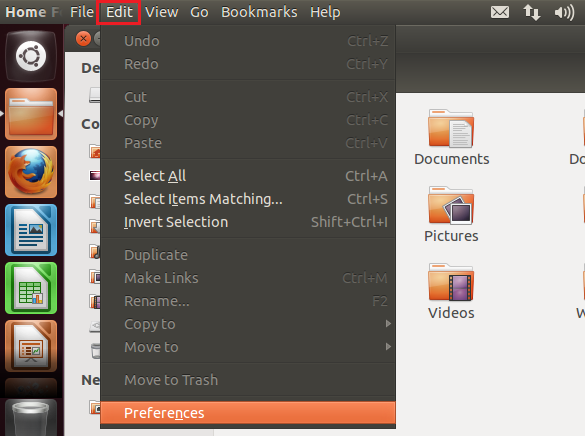
در اوبونتو :

برنامه ی Nautilus رو باز کنین  ( Home , My computer یا همون مرور گر فایل )

به سیر Edit > Preferences بروید.

single_click_precise_2


در تب Bahavior تیک  کنار گزینه ی Single Click to open item رو بزنین .


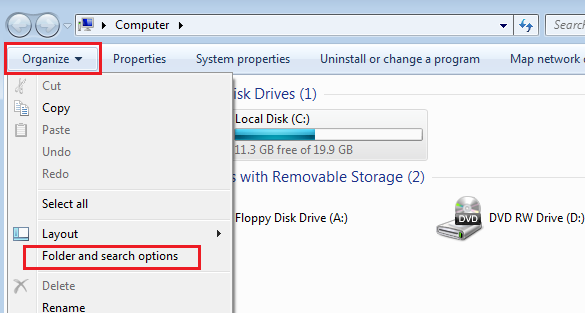
در ویندوز :‌

Computer رو باز کنین و به مسیر Organiz > Folder and search options بروید .

single_click_precise


در تب General تیک گزینه ی Single Click to open an item رو بزنید .

منبع: linuxseason.ir

نحوه نصب انواع سیستم از روی فلش

https://help.ubuntu.com/community/Installation/FromUSBStick